How can I add a user to a group under Linux operating system using command line options?
You can use the useradd or usermod commands to add a user to a group. The useradd command creates a new user or update default new user information. The usermod command modifies a user account and it is useful to add user to existing groups. There are two types of groups under Linux operating systems:

You can use the useradd or usermod commands to add a user to a group. The useradd command creates a new user or update default new user information. The usermod command modifies a user account and it is useful to add user to existing groups. There are two types of groups under Linux operating systems:
| Tutorial details | |
|---|---|
| Difficulty | Intermediate (rss) |
| Root privileges | Yes |
| Requirements | usermod/useradd |
| Estimated completion time | 5 minutes |
- Primary user group.
- Secondary or supplementary user group.
All user account related information are stored in the following files:
- /etc/passwd - Contains one line for each user account.
- /etc/shadow - Contains the password information in encrypted formatfor the system's accounts and optional account aging information.
- /etc/group - Defines the groups on the system.
- /etc/default/useradd - This file contains a value for the default group, if none is specified by the useradd command.
- /etc/login.defs - This file defines the site-specific configuration for the shadow password suite stored in /etc/shadow file.
useradd Example - Add a new user to secondary group
You need to the useradd command to add new users to existing group (or create a new group and then add user). If group does not exist, create it. The syntax is as follows:
In this example, create a new user called vivek and add it to group called developers. First login as a root user (make sure group developers exists), enter:
Output:
useradd -G {group-name} usernameIn this example, create a new user called vivek and add it to group called developers. First login as a root user (make sure group developers exists), enter:
# grep developers /etc/groupOutput:
developers:x:1124:
If you do not see any output then you need to add group developers using the groupadd command:
Next, add a user called vivek to group developers:
Setup password for user vivek:
Ensure that user added properly to group developers:
# groupadd developersNext, add a user called vivek to group developers:
# useradd -G developers vivekSetup password for user vivek:
# passwd vivekEnsure that user added properly to group developers:
# id vivekOutput:uid=1122(vivek) gid=1125(vivek) groups=1125(vivek),1124(developers)
Please note that capital G (-G) option add user to a list of supplementary groups. Each group is separated from the next by a comma, with no intervening whitespace. For example, add user jerry to groups admins, ftp, www, and developers, enter:
# useradd -G admins,ftp,www,developers jerryuseradd example - Add a new user to primary group
To add a user tony to group developers use the following command:
Sample outputs:
# useradd -g developers tony
# id tony
Sample outputs:
uid=1123(tony) gid=1124(developers) groups=1124(developers)
Please note that small g (-g) option add user to initial login group (primary group). The group name must exist. A group number must refer to an already existing group.
usermod example - Add a existing user to existing group
Add existing user tony to ftp supplementary/secondary group with the usermod command using the -a option ~ i.e. add the user to the supplemental group(s). Use only with -G option:
In this example, change tony user's primary group to www, enter:
# usermod -a -G ftp tonyIn this example, change tony user's primary group to www, enter:
# usermod -g www tonyusermod command options summary
| Option | Purpose |
|---|---|
| -a --append | Add the user to the supplementary group(s). Use only with the -G option. |
| -g GROUP --gid GROUP | Use this GROUP as the default group. |
| -G GRP1,GRP2 --groups GRP1,GRP2 | Add the user to GRP1,GRP2 secondary group. |
A note about security
If you add or delete user to existing group, you must change the owner of any crontab files or at jobs manually. You must make any changes involving NIS on the NIS server too.
A note about GUI tool
You will probably find the use of the GUI tool easy. KDE user can use KUser tool and the GNOME user can use users-admin tool called system-config-users:
Sample outputs:
# system-config-usersSample outputs:
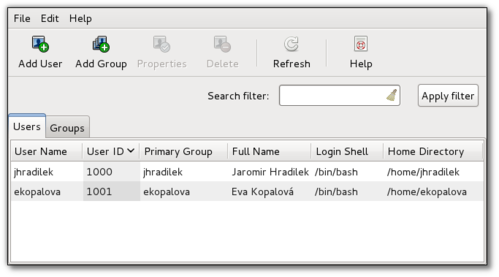
Fig.01: User Manager Tool in action (image credit Fedora project)
SEE ALSO
For more information type the following command at the shell prompt:
$ man usermod
$ man useradd
댓글
댓글 쓰기